Link Text
Summary
Section titled “Summary”Ask yourself: if the only thing I saw was a link’s text, would I know what will happen when I click it? Screen reader users often get a list of links when listening to a web page so they can go directly to the desired link. People with cognitive and learning disabilities may have difficulty understanding a “click here” link that relies on the previous paragraph to explain its purpose. Because of these issues, you must choose the link text carefully. A link’s text must describe its destination clearly, even when taken out of context.
Overview
Section titled “Overview”Links are everywhere: in emails, on social media, in documents, and on websites. Links, or hyperlinks, allow users to navigate from one location to another. Accessible hyperlinks are a key aspect of creating accessible websites and documents. Creating links that are easy to understand is important in enhancing usability and accessibility for everyone.
It does not take much to make a link’s text accessible.
- Ensure that the link text clearly describes the link’s destination.
- Ensure that the link text is concise and descriptive, and that it retains its meaning when taken out of context.
- Ensure that the link text does not use ambiguous phrases such as “click here” or “read more.”
- Ensure that the link text used to describe a specific destination is unique.
- Don’t use different words to link to the same destination.
- Don’t use the same words to link to different destinations.
- Ensure that the link text is not a URL.
- Ensure that the link text is 100 characters or fewer whenever possible.
- Ensure that the link text is not left empty.
Who is Helped
Section titled “Who is Helped”The following groups of people benefit from descriptive links.
- People with cognitive disabilities and learning limitations rely on descriptive text to understand links.
- People who are blind rely on descriptive text to determine the meaning of links when using assistive technologies such as a screen reader. People with low or limited vision, as well as some people with cognitive disabilities, may also use screen readers. People who use screen readers often use a list of links to navigate a page. Links must make sense when taken out of context.
- People with motor disabilities rely on descriptive text to understand which links they want to visit and avoid unnecessary keystrokes by skipping those they do not want to visit.
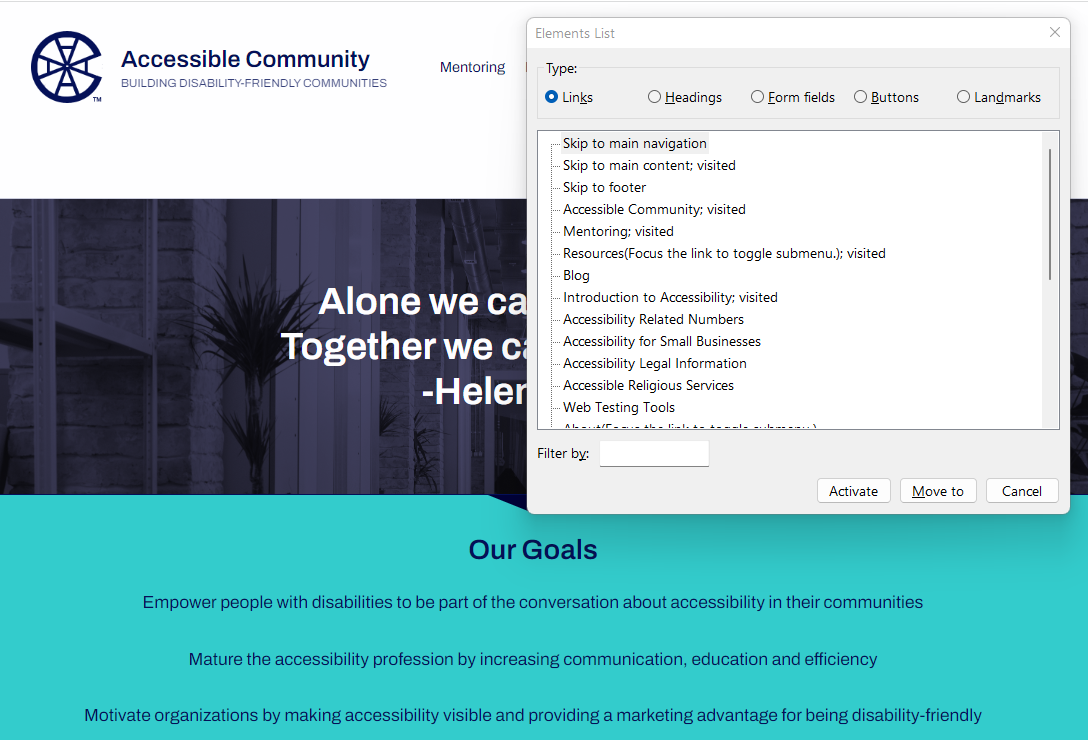
Figure 1 above shows the list of links generated by an NVDA screen reader for the Accessible Community Home Page. The list includes links like “Skip to main navigation,” “Mentoring,” and “Blog.” Even taken out of context, the text for these links makes sense - it’s easy to understand what will happen if any of these links is selected.
Guidelines
Section titled “Guidelines”People should look at a link’s text and understand what happens when the link is clicked. These guidelines explain how to meet this criterion.
Descriptive Hyperlinks
Section titled “Descriptive Hyperlinks”- Create descriptive hyperlinks that are easy to understand and clearly indicate the destination. This allows users to easily understand the purpose of the link as they navigate through sites or documents. Screen reader users may prefer a list of links and will hear only the link, without the surrounding text, so it is important that the link text be meaningful when taken out of context.
- Example: Accessible Community Homepage
Code Example <a href="https://accessiblecommunity.org/">Accessible Community Homepage</a> - Best practice: Links to websites or documents should reflect the name of the website or document.
- Example: Accessible Community Homepage
- Use unique phrases to describe each link’s specific destination:
- Links with the same text should go to the same destination.
- Links with different text should go to different destinations.
- Avoid using titles, tooltips, and screen tips for additional information. Any link information communicated to the user should be in the hyperlink. Using titles, tooltips, or screen tips can be problematic for some users, as they are not always accessible.
- Screen reader users often turn off titles to reduce the amount of information read aloud.
- If a hyperlink is used to download a program or file, ensure that there is text or an image with alt text that mentions this.
- If a hyperlink opens in a new tab or window, ensure this is mentioned in the text or with an image with alt text describing what will happen.
- Example 1: Accessible Community Homepage (opens in a new tab).
- Example 2: The same link with an image indicating the page opens in a new tab.

Figure 2: Link with “New Tab” Icon Code for Example 2 <a href="https://accessiblecommunity.org/>Accessible Community Homepage<img src="new-window.png" alt="new tab"></a>
Avoid Vague Link Text
Section titled “Avoid Vague Link Text”Avoid using phrases such as “see more,” “click here,” “download,” etc. Such phrases are ambiguous and don’t convey the link’s purpose. This ambiguity is especially confusing for people using assistive technologies like screen readers when the link is heard out of context.
| Use | Avoid |
|---|---|
| Click here to unsubscribe | Click here to unsubscribe |
Keep Links Concise
Section titled “Keep Links Concise”Links should be as concise as possible. Limit links to 100 letters or fewer when possible. Don’t use links longer than a single sentence.
| Use | Avoid |
|---|---|
| Learn more about accessible fonts | Click here if you want to learn more about accessible fonts. Fonts are an important part of accessibility. |
Use Readable Link Text Instead of URLs
Section titled “Use Readable Link Text Instead of URLs”Avoid using long URLs as link text. This is because screen readers will announce a URL address letter by letter, which is challenging for users to understand. Instead, use readable text. If a URL must be used as a link, keep the URL short and easy to understand.
| Use | Avoid |
|---|---|
| Accessible Community Homepage | https://wwww.accessiblecommunity.org/homepage?p=86725-376 |
| accessiblecommunity.org |
Ensure Link Text Exists
Section titled “Ensure Link Text Exists”Ensure that the link text is not empty. Do not rely on the title attribute to provide link text, as not all assistive technologies reliably interpret title text.
| Use | Avoid |
|---|---|
<a href="home.html">Home</a> | <a href="home.html" title="Home"></a> |
Image Links Must Describe The Destination
Section titled “Image Links Must Describe The Destination”Ensure that if an image is used as a link, the image alt text describes the link’s purpose instead of the image. If an image of text is the link, the alt text should include the text in the image. See Functional Images for more information on linking images correctly.
| Use | Avoid |
|---|---|
<a href="home.html"><img src="home.png" alt="Home Page"></a> | <a href="home.html"><img src="home.png" alt="house icon"></a> |
Avoid Uppercase Letters
Section titled “Avoid Uppercase Letters”Avoid using uppercase capital letters for text links except for acronyms. Users with learning and cognitive disabilities are adversely affected since they find it difficult to read information with capitalized letters. Users who rely on screen readers may find it difficult to understand the link’s content because the letters are announced letter by letter. If capitalization is required, the CSS text-transform: uppercase can be used to render uppercase text without affecting screen reader users.
| Use | Avoid |
|---|---|
| Accessible Community Homepage | ACCESSIBLE COMMUNITY HOMEPAGE |
Don’t Use “Link” In Text
Section titled “Don’t Use “Link” In Text”Avoid using the term “link” as part of the hyperlink. Screen readers will announce that the element is a link before reading the link text. If the term “link” appears in the link text, screen reader users will hear it twice.
| Use | Avoid |
|---|---|
| Accessible Community Homepage | Link to Accessible Community Homepage |
Make Numeric Links Clear
Section titled “Make Numeric Links Clear”If a link contains numbers, such as a phone number, ensure the numbers are formatted to make their function clear and prompt screen readers to read them correctly.
| Use | Avoid |
|---|---|
| Phone (123) 456-7890 | Phone 1234567890 |
How to Test
Section titled “How to Test”Two techniques are effective for identifying poor link text.
- Use a screen reader such as Voice Over, JAWS, or NVDA.
- Use an accessibility test tool such as ANDI, WAVE, ARC Toolkit, or Axe DevTool.
A screen reader is a good choice to check link text. Using a screen reader to get a list of links will quickly reveal problems with inaccessible link text.
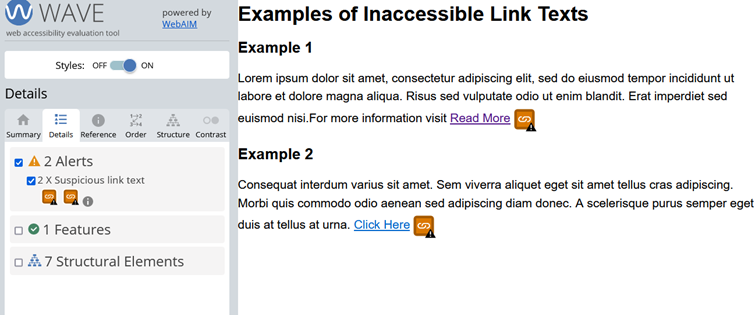
Most automated accessibility test tools also do a good job of checking link text. Figure 3 shows a sample website in which two inaccessible link texts are identified using the WAVE accessibility test tool (browser extension) as having “suspicious link text.” See WAVE for information on using this tool.
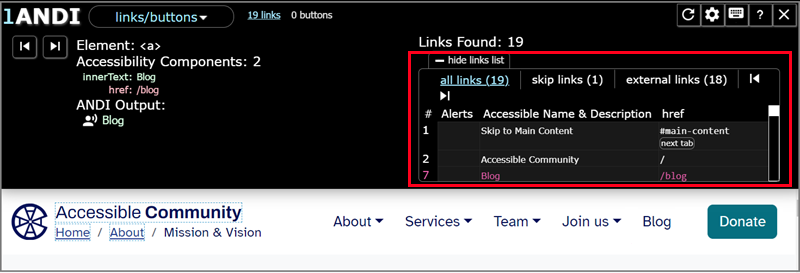
Another good test tool is ANDI. This tool identifies link errors and displays a list of all links on the page, making it easy to inspect the link text and verify that all guidelines are met. After opening ANDI, go to the “Links/Buttons” module and expand the Links List. Figure 4 shows the ANDI Links List for the Accessible Community Mission page. See ANDI (Ta11y) for information on how to use this tool.