Form Fields and Labels
Summary
Section titled “Summary”Forms are an important way that people interact with websites. Users need to understand how to use the form by reading the form field labels.
Fields are the spaces where users enter information in a form. Labels tell users what information they need to enter in each field.
For people with disabilities to use forms successfully:
- form fields must have visible labels,
- labels must be descriptive and unambiguous, and
- the form field’s code must connect it to the correct label.
These guidelines will make it easier for everyone using the form to understand it.
Overview
Section titled “Overview”Labels should be clear, descriptive, and visible. Good labels help users with and without disabilities.
Labels also provide the accessible name of a form field. The “Accessible name” is the name that assistive technologies can understand. It can be found in the code for the webpage. Examples include a “submit” button and a “search” input field. The name defines the function of the element. Assistive devices like screen readers read the accessible name, then tell the user what they are.
“Programmatic Association” is a term used in accessibility. It means the connection between multiple elements on a web page is based on the underlying code. Programmatic association tells assistive technologies which form field is connected to which label. Users who rely on assistive technology cannot fill out forms on a webpage without programmatic association.
The following guidelines will help you create form fields that can be understood and used by everyone.
- Provide visible text labels.
- Ensure the proximity of labels to form fields.
- Ensure labels are clear, concise, and descriptive. Use plain language and avoid metaphors.
- Ensure labels do not disappear when you click on the form field.
- Provide programmatically discernible text for labels. This means the label text must be available to assistive technologies, not just visually on the page.
- Ensure that the programmatic label matches the visible label, so all users receive the same information whether they are reading or using assistive technology.
- Ensure that each programmatic label references the correct form field. This association allows screen readers and other assistive technologies to identify which input the label belongs to, improving clarity and usability for everyone.
- Ensure form fields are keyboard navigable. This topic is covered in Keyboard Navigation (Ta11y).
- Ensure form field labels, borders, state indicators, and any other associated text have correct color contrast. Never rely on color alone to convey information. See Text Contrast (Ta11y) and Non-text Contrast (Ta11y) for more information.
- Ensure form fields have a visible indication when they receive focus. This topic is covered in Visible Focus (Ta11y).
Who is Helped
Section titled “Who is Helped”The following users will benefit from clear form labels:
- Blind users need clear, descriptive text labels near form fields. Tools such as screen readers must be able to read the form field labels.
- Users with low vision often magnify the browser window or desktop. Screen magnifier users can sometimes only see a small part of the screen. Labels should be next to form fields so the users see them together when the screen is enlarged.
- Neurodivergent users benefit from clear, descriptive, and visible labels and visible focus indicators.
- Users with limited mobility or fine motor skills need websites to be keyboard navigable. They also need labels and focus indicators that are easy to see.
Guidelines
Section titled “Guidelines”In order for your forms to be accessible, the labels in them should:
- Be visible
- Be near form fields
- Provide clear and descriptive labels
- Provide programmatically-discernible text for labels
- Match the programmatic labels
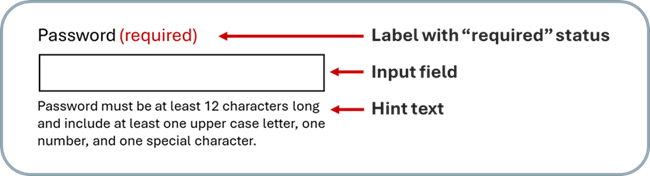
Let’s look at a description of what a typical form looks like, and identify the different parts that make it up.
The form labels tell the user what information they need to enter. In the example below, the label “Password” indicates what the user should input.
Next to the label there is the word “Required” written in red. This lets the user know that they must enter this information to complete the form.
The technical name for the place users enter information is “Input field.” This section is often shaped like a rectangle, and you will be able to click on it and the cursor will appear there. This lets the user know they can type inside of it.
Below the input field is a section of “Hint Text.” Hint text is a set of instructions next to an input field. In the example below, the hint text explains what the user’s password must contain for it to work. Examples of hints are the number of characters it should have, or how many uppercase letters it needs.
Provide Visible Labels
Section titled “Provide Visible Labels”Labels must be visible and placed next to the input they describe. The best location for labels is usually above the input field.
Labels should be text whenever possible. Avoid using images of text, as these can cause accessibility issues and fail WCAG 1.4.5 unless the image is essential (such as a logo or stylized brand name).
In limited cases, a clearly recognizable icon can serve as a label. For example, a magnifying glass icon may indicate a search field. If an icon is used, it must have an accessible name (such as a text alternative or aria-label) that describes its purpose.
You can use a common icon instead of text in some instances. For example, a magnifying glass icon can replace the word “search.” The image should still have alt text to describe what the icon does.
Use text rather than images of text whenever possible. If images of text must be used, ensure the alt text reflects the text in the image.
Placeholders are often used with forms. Placeholders are words or phrases that are placed inside an input field. Once the input field receives focus, that text disappears. This means users must remember their purpose.
A common problem with placeholders is that they often have poor color contrast, making them difficult to see.
Placeholders are not a replacement for a label. They are meant to be supplemental information, not labels. Here are some “Dos” and “Don’ts” to consider when using placeholders:
- Do use placeholders to supplement information in the labels.
- Don’t include important information in placeholders.
- Do ensure good color contrast on your placeholders.
Avoid using a label that looks like placeholder text. This pattern can confuse users, especially people with cognitive disabilities or those who are neurodivergent, because it may appear that the input is already completed. Labels should remain clearly visible and distinguishable from placeholder text at all times.
Ensure Proximity of Labels to Form Fields
Section titled “Ensure Proximity of Labels to Form Fields”For text inputs, labels should either be placed immediately to the left of the form field, or above it and aligned to the left.
For checkboxes, labels should be placed immediately to the right.
Two groups in particular may have difficulty filling out forms if the labels are not near the fields: people with low vision, and people with cognitive disabilities.
Some people with visual impairments use screen magnifiers. They might need to scroll several times to understand the form if the label and form field are far apart.
People with cognitive disabilities may find it difficult to fill out a form if the label for a field is far from it. The further a form field is from its label, the greater chance there is for confusion. It can be hard to connect form field labels with the correct field if the two things are far apart from each other.
For more information on why it’s important to keep form fields and labels close together, see Grouped Options (Ta11y).
Ensure Form Fields are Keyboard Navigable
Section titled “Ensure Form Fields are Keyboard Navigable”Many people navigate websites using only a keyboard. This can be by necessity or preference, including for people with visual or motor disabilities.
To make your webpage accessible, users must be able to navigate it using keyboard controls such as the Tab, Enter, Spacebar, and arrow keys.
Most native HTML form elements (like <<input>, <textarea>, <button>, and <select>) are keyboard accessible by default. However, custom form controls created with JavaScript or non-semantic elements (like <div> or <span>) must be programmed to support keyboard interaction.
Users should be able to move through each form field using only a keyboard and return to previous fields if they need to make corrections.
See Keyboard Navigation (Ta11y) for more information.
Ensure Form Fields Have a Visible Indication When They Receive Focus
Section titled “Ensure Form Fields Have a Visible Indication When They Receive Focus”A visible focus indicator tells people, with visual cues, where they are on the page. It highlights the interactive elements on the site as people tab through the webpage.
Focus indicators can vary based on design preference, but they should not rely just on color. The best focus indicators also have a geometric or shape-based element, such as a dotted line.
Form fields should have a marker of some sort around them when the user is working on them. This lets them know what the current field form is that they are working on.
See Visible Focus (Ta11y) for more information on focus indicators.
Provide Clear and Descriptive Labels
Section titled “Provide Clear and Descriptive Labels”Effective labels help all users fill forms without confusion or barriers. Following the advice in the list below can help you write more effective labels.
Descriptive terms
Section titled “Descriptive terms”- Use specific descriptions (ie, “Full name (first and last)” rather than just “Name”)
- Be concise, but be clear
- Avoid vague terms that could have several meanings
- Avoid metaphors, as these can be confusing
- Providing additional context helps users with cognitive disabilities
Common naming conventions
Section titled “Common naming conventions”- Use standard terms like “Email address” that most users recognize
- Follow established conventions (ie, “CVV” for credit card security codes)
Don’t rely on a single sense
Section titled “Don’t rely on a single sense”- Never rely solely on color, icons, or position
- Pair visual elements with text equivalents
- Include text alternatives for all non-text indicators
Required field indicators
Section titled “Required field indicators”- Use consistent markers like asterisks (*) in combination with the word “required”
- Don’t indicate required fields with just color
- If most fields are required, clearly identify any optional fields to help users understand which inputs they can skip.
Text formatting
Section titled “Text formatting”- Avoid all caps except for acronyms or short headings
- Use sentence case to improve readability for labels
- Avoid excessive capitalization; it is visual noise
Provide Programmatically-Discernible Text for Labels
Section titled “Provide Programmatically-Discernible Text for Labels”Labels must be programmatically discernible. This means that they are machine-readable, so assistive technologies can identify them. This applies to all label types: text, an image of text, or an icon.
In order of preference, label form fields using HTML label tag, aria-labelledby, or aria-label.
HTML label tags are the standard for form field programmatic labelling. They are less likely to contain errors.
Aria-labelledby and aria-label are both equally helpful, yet can cause further issues if not set up correctly. A common saying is, “No Aria is better than bad Aria.”
Read below to learn about each:
HTML label tags directly associate visible text with its input field. They work for all form controls (text inputs, checkboxes, etc.).
Example:
<label for="email">Email address:</label><input type="email" id="email">aria-labelledby
Section titled “aria-labelledby”Useful when labels include additional elements (ie, instructions, icons).
Example:
<div id="phone-label">Phone number <span>(required)</span></div><input type="tel" aria-labelledby="phone-label">aria-label
Section titled “aria-label”Only use when visible text isn’t possible (ie, icon-only buttons).
Avoid this method for critical form fields; visible labels are always better.
Example:
<input type="search" aria-label="Search website">Ensure That the Programmatic Label Matches the Visible Label
Section titled “Ensure That the Programmatic Label Matches the Visible Label”The accessible name (the programmatically discernible text) should match the visible label for all form fields. If the accessible name and the visible label do not match, screen reader users and seeing users will get different information.
Ensure Labels are Programmatically Associated with Form Fields
Section titled “Ensure Labels are Programmatically Associated with Form Fields”Programmatic association ensures that assistive technologies can correctly identify form labels. It tells screen readers and other types of assistive technology which labels are related to which field. This association can be achieved through a variety of methods.
1. for / id association
Section titled “1. for / id association”The for attribute is an HTML attribute used with the
It works for all types of inputs that use the
Example:
<label for="username">Username:</label><input type="text" id="username">2. aria-labelledby
Section titled “2. aria-labelledby”Use aria-labelledby when an input needs to reference visible text that is not directly connected with a
Example:
<div id="dob-label">Date of Birth (MM/DD/YYYY)</div><input type="text" aria-labelledby="dob-label">In most cases, however, you can include this information directly within a
How to Test
Section titled “How to Test”Although some automated test tools can be used to test if form fields and labels are accessible, most testing must be done manually. This work can be lengthy and time-consuming if a form has many different input fields.
The best ways to test forms are through:
- visual inspection;
- keyboard navigation;
- screen reader testing (Jaws, NVDA, Narrator, VoiceOver), and
- automated testing tools (ANDI, axe DevTools, ARC Toolkit, WAVE Evaluation Tool, bookmarklets/favelets).
Visual Inspection
Section titled “Visual Inspection”Visual Inspection is a crucial step in testing form fields and labels. We can check the following only through visual inspection:
- Whether all active form elements have labels or instructions when they receive focus.
- Whether the label is close to the form field it belongs to.
- If visible labels or instructions are easy to understand, i.e., what information a person needs to enter and in what format.
Testing with a Keyboard
Section titled “Testing with a Keyboard”It is important that people can navigate your webpage with only their keyboard. You need to ensure that all form elements are keyboard accessible and that there are no keyboard traps. Here is how you can do that:
- Start from the first form element of the page and tab through all active form elements on the page using only the keyboard.
- When you reach the last form element of the page, use Shift+Tab and return to the first form element of the testing page.
Testing with a Screen Reader
Section titled “Testing with a Screen Reader”A manual check for Programmatic Association is necessary. For assistive technology (AT) users, each form input element must have a programmatic association. This means that the on-screen label and its audio description should preserve the meaning and purpose of the form element. This connection must be checked for all form elements on a webpage.
AT users should receive the same cues and instructions as those who can read them on screen. You can use automated test tools or a screen reader to test these programmatic associations.
Testing with a screen reader helps us understand what people with visual impairments hear when interacting with our forms. But you need to learn some basic keyboard combinations before using them. You can find a user guide on the screen reader’s webpage, print it, and use it as a cheat sheet if you’re stuck.
The most popular screen readers are:
For Windows Operating System
Section titled “For Windows Operating System”- NVDA (Non-Visual Desktop Access) is free and very popular worldwide. It works well for Mozilla Firefox and Google Chrome browsers.
- JAWS (Job Access With Speech) is also very popular, but not free.
- Narrator is a built-in Windows screen reader. It works best with the Edge browser.
For macOS and iOS
Section titled “For macOS and iOS”- VoiceOver is a built-in screen reader for all desktop and mobile Apple devices.
For the Android Operating System
Section titled “For the Android Operating System”- TalkBack is a built-in screen reader for Google Android devices.
To learn more about testing with a screen reader, check these articles:
Some tools may help you identify whether all associations are present, but you must manually check whether these associations are meaningful and correct.
Testing with Automated Test Tools
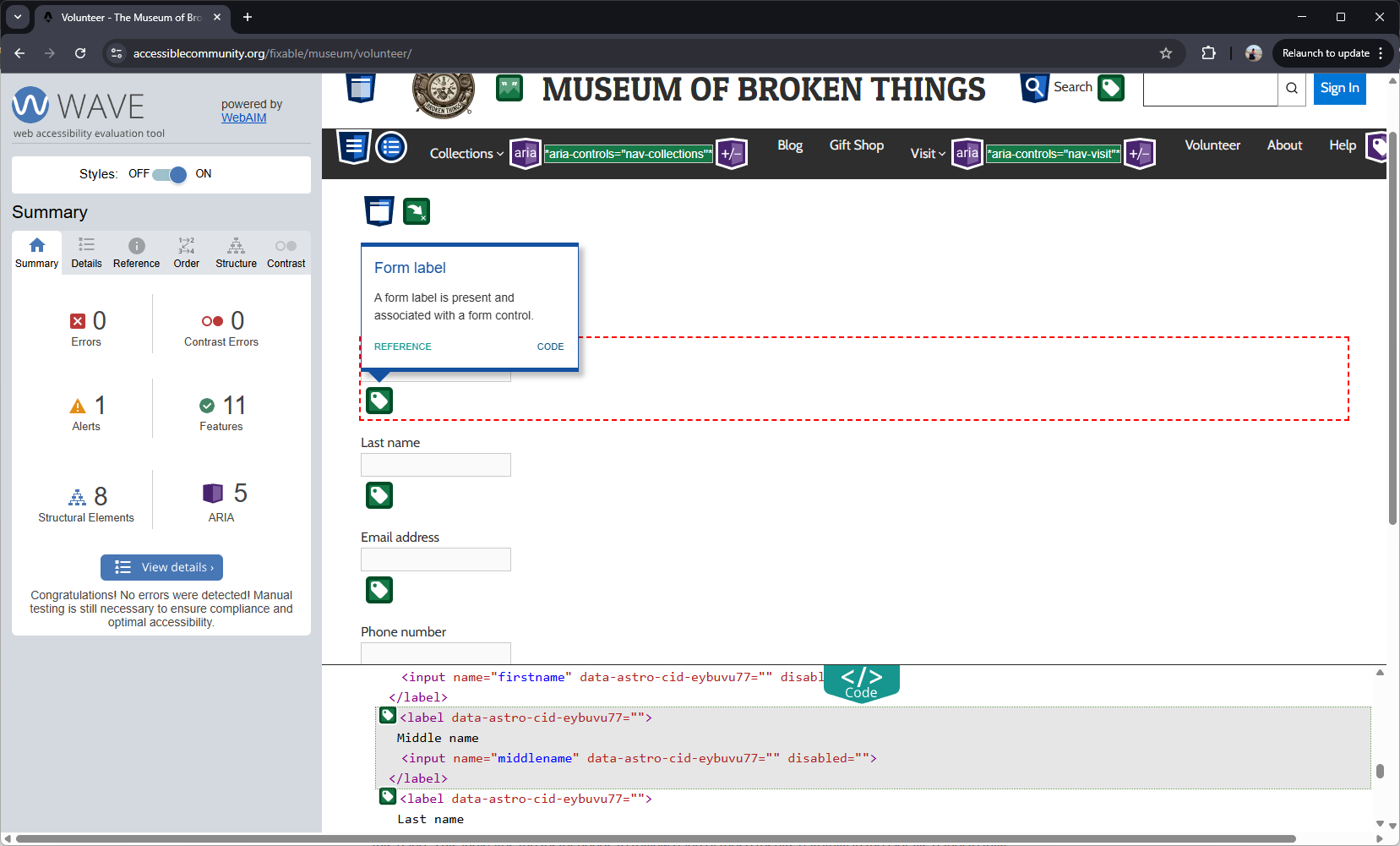
Section titled “Testing with Automated Test Tools”Automated Test Tools help us find all form elements on a web page. These tools are available for free. Some tools offer more detailed testing if you pay for it. You don’t need them all, but it’s worth trying several and choosing which one you like the most. For demonstration purposes, I will show you an excerpt of each tool’s report.
As an example, I will use a form on the Volunteer page of The Museum of Broken Things. The purpose of this project (The Museum of Broken Things) is to demonstrate typical accessibility problems that people with different types of disabilities face while browsing the Internet.
ANDI (Accessible Name & Description Inspector) bookmarklet
Section titled “ANDI (Accessible Name & Description Inspector) bookmarklet”This bookmarklet helps identify all form elements, instructions, and cues. See ANDI Bookmarklet (Ta11y) to learn more about this testing tool.
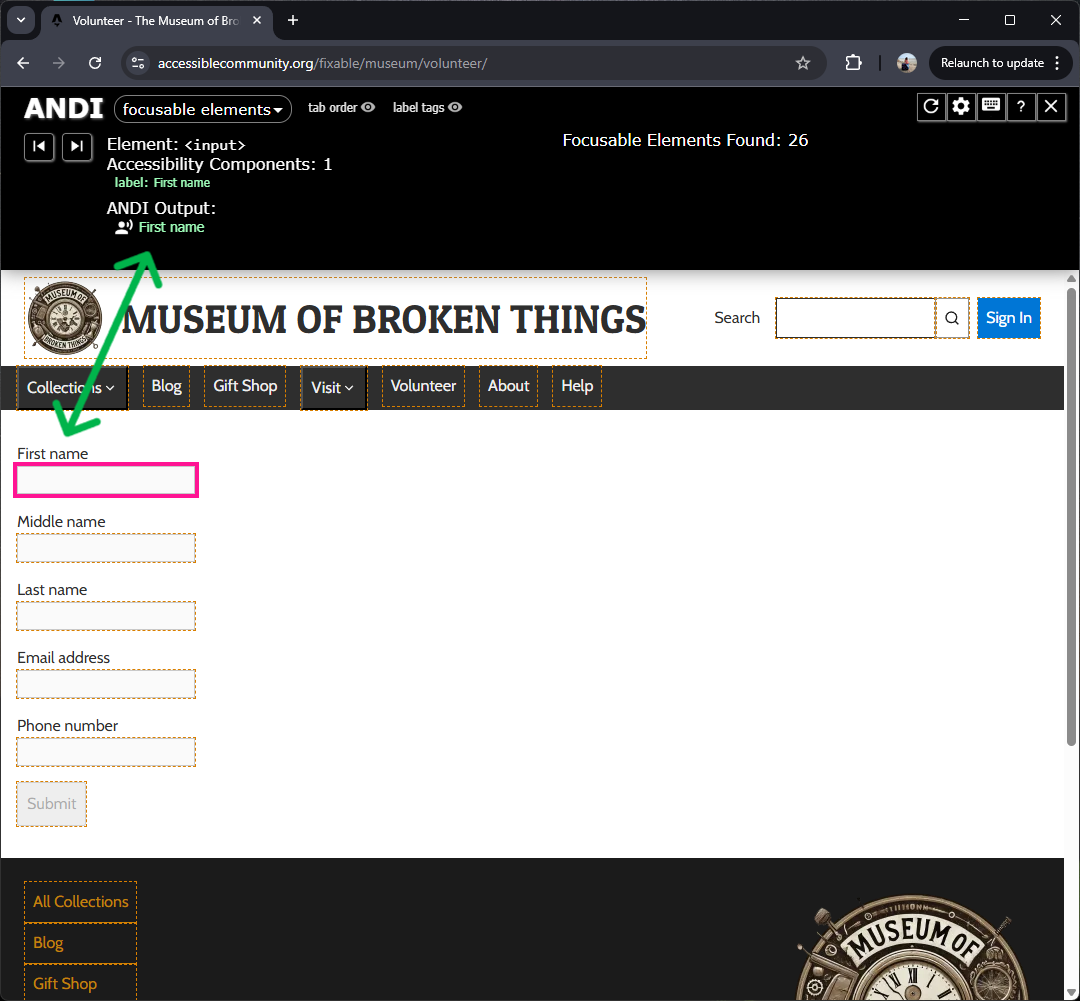
Usually, ANDI opens with “Focusable Elements” preselected from the dropdown menu. This selection also includes:
- the number of focusable elements on the page (26);
- information about the active element, which is indicated on the webpage with a magenta outline, including:
- the HTML tag (
<input>), - label (First name),
- and output of the active element.
- the HTML tag (
The output is how the screen reader will announce the element (in this case, First Name).
How to test with ANDI
Section titled “How to test with ANDI”- Open the testing page and click on the ANDI bookmarklet to run it.
- Using the “Previous/Next Element buttons”, go through all form fields.
- Manually verify if the ANDI Output contains all the necessary information.
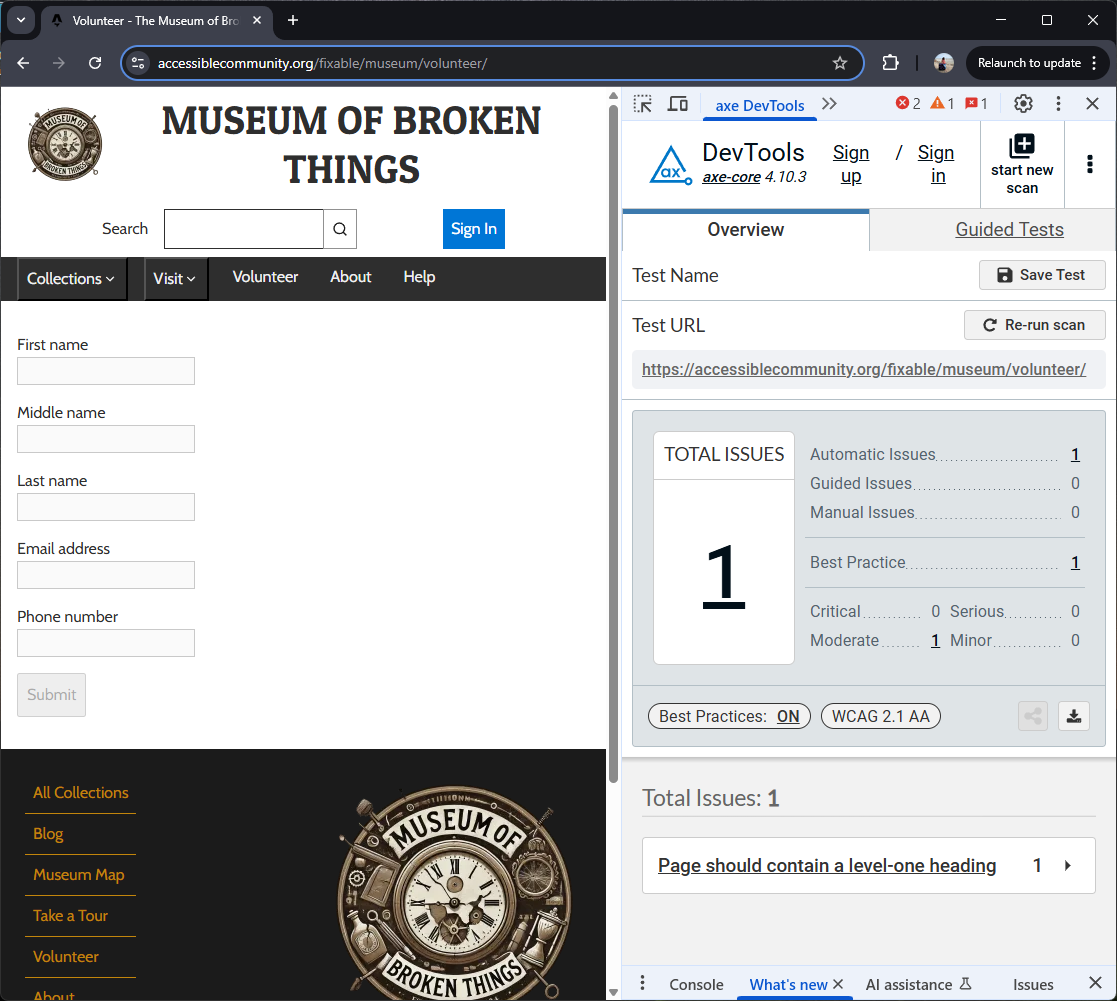
axe DevTools
Section titled “axe DevTools”This extension for Chrome and Firefox browsers helps identify accessibility issues.
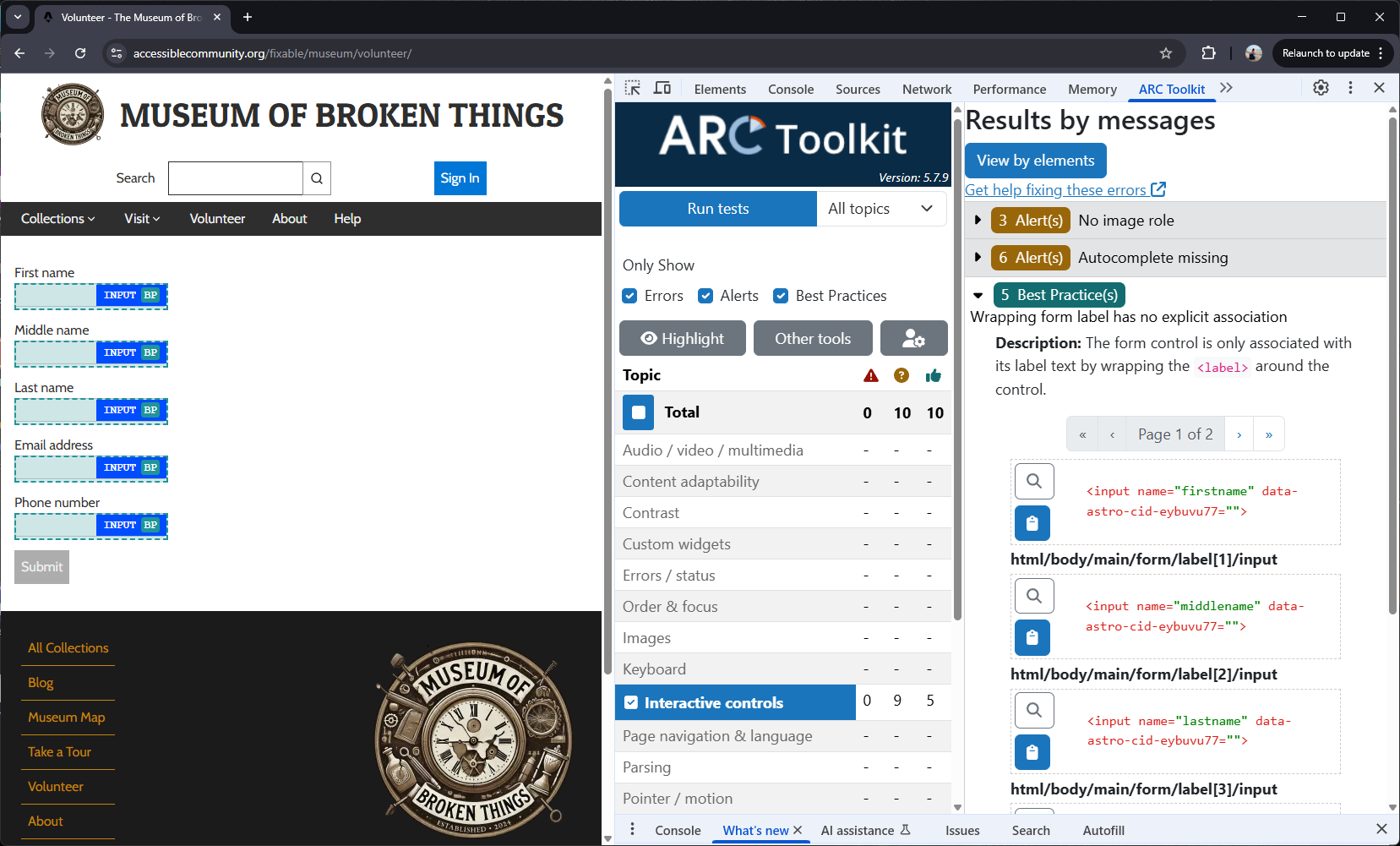
ARC Toolkit
Section titled “ARC Toolkit”This testing tool provides automated checks for various accessibility features.
WAVE Evaluation Tool
Section titled “WAVE Evaluation Tool”This browser extension helps to identify accessibility issues.

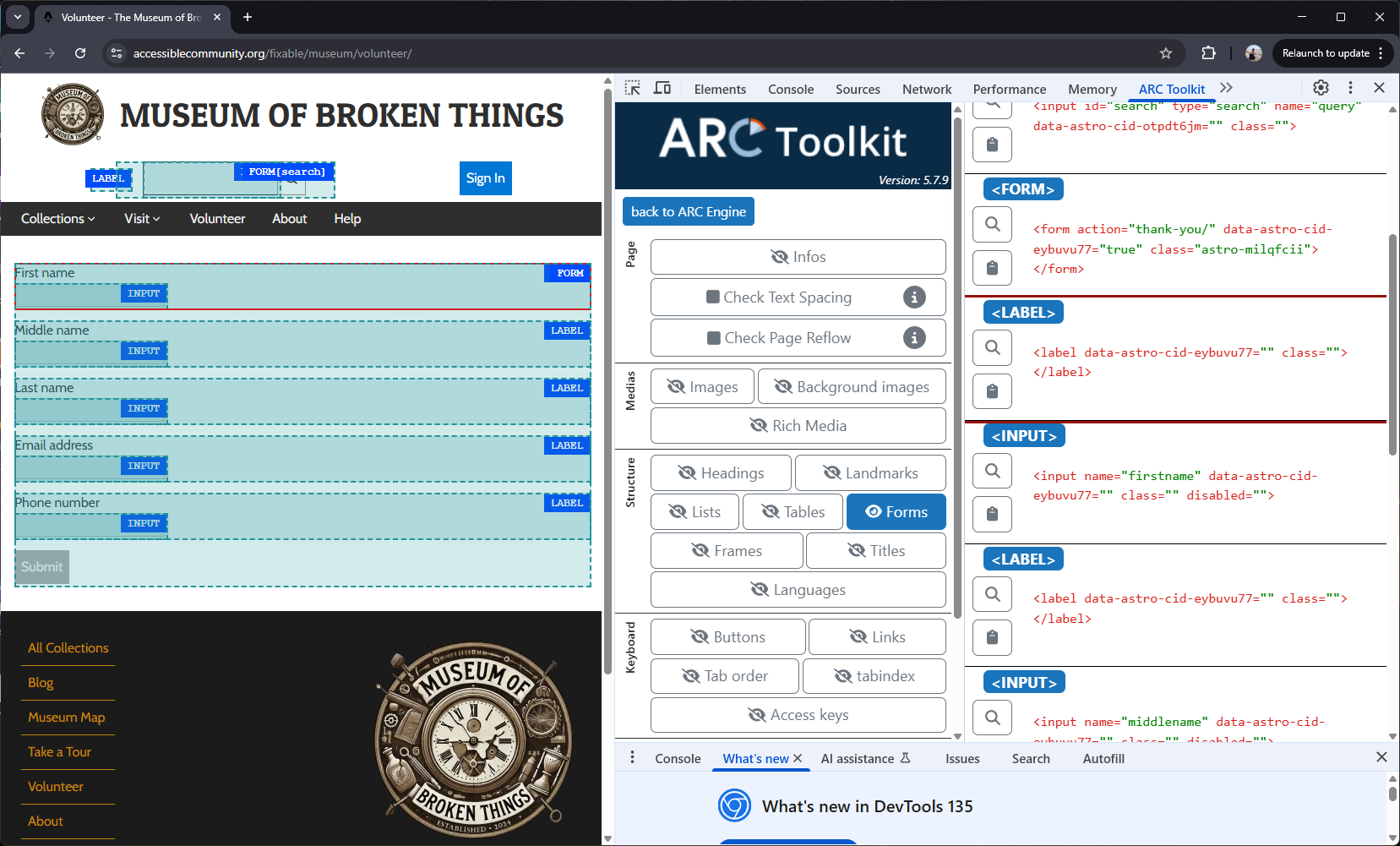
Forms Bookmarklet
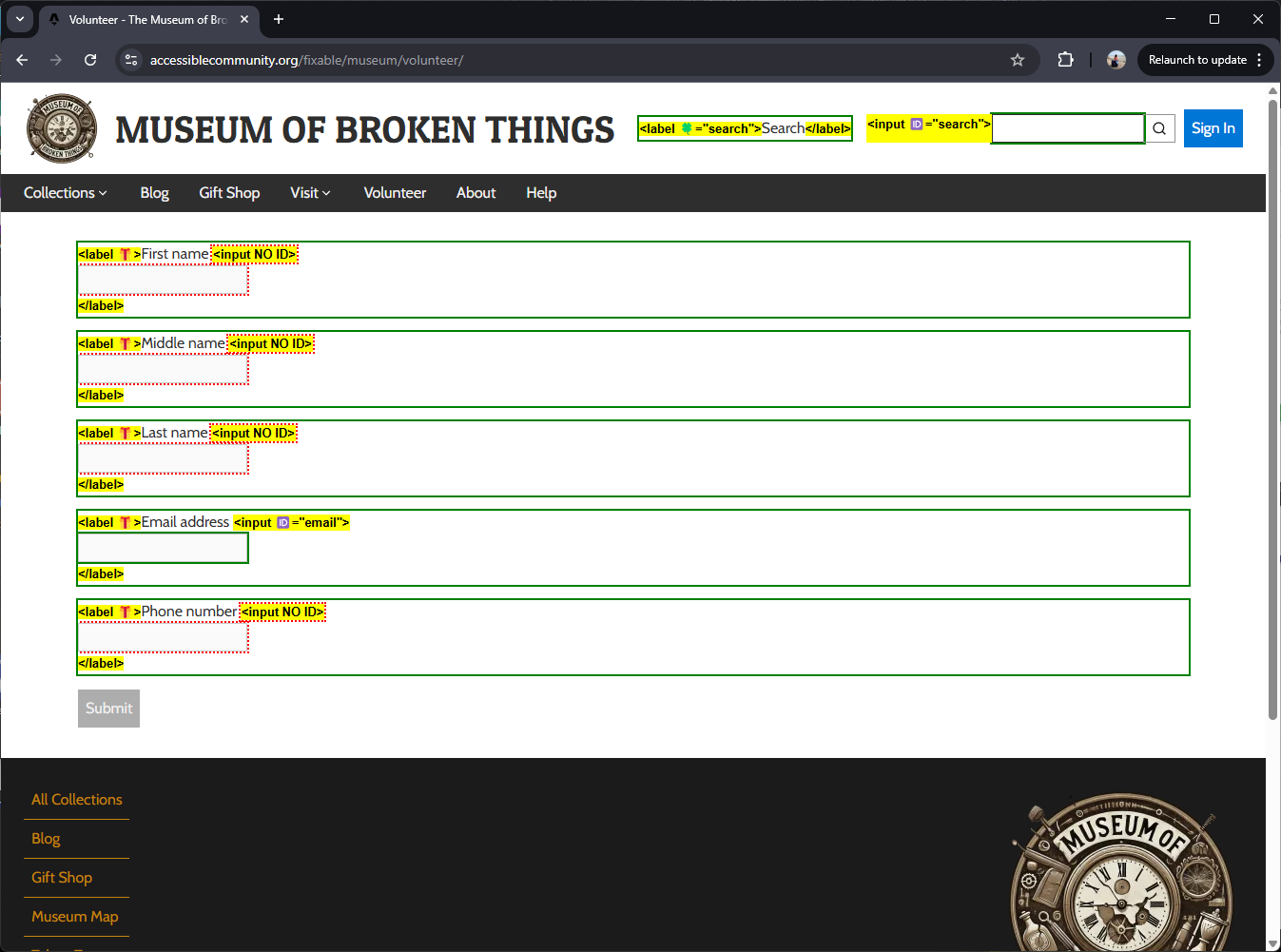
Section titled “Forms Bookmarklet”This tool helps identify form-related issues, such as missing labels, placeholders used instead of labels, or labels with a FOR/ID mismatch.
In conclusion, this form we tested was coded with the nesting method, where <input> elements are inside <label> elements:
<label>First name<input name="firstname"></label>This method may be the best approach for simple forms. However, it is not recommended for accessibility because some assistive technologies do not support it. The most reliable and supported method is explicit association. It uses the FOR attribute on the <label> pointing to the ID of the <input> it is associated with. For example:
<label for=”fname”>First name</label><input id=”fname” type=”text” name="firstname" autocomplete=”given-name”/>For more information on the Forms Bookmarklet, including installation instructions, see the Forms Bookmarklet on the author’s page.
To learn more about programmatic association in accessibility, see Technique H44: Using label elements to associate text labels with form controls (W3C).
Three out of the five automated tools (ARC Toolkit, WAVE, and Forms Bookmarklet by Paul J. Adam) indicated areas to check and verified that changes were needed to improve accessibility. This shows the importance of using automated tools as a supplement to manual testing, not as a replacement for it.
Resources
Section titled “Resources”Screen Readers
Section titled “Screen Readers”Automated Testing Tools
Section titled “Automated Testing Tools”- ANDI Bookmarklet Testing Tool (ANDI)
- ARC Toolkit Quickstart (TPGI) (PDF)
- Forms Bookmarklet (Paul J. Adam)
- WAVE Web Evaluation Accessibility Guide (WebAIM)
References
Section titled “References”- WCAG Success Criteria 1.3.1 Info and Relationships (W3C)
- WCAG Success Criteria 2.4.6 Headings and Labels (W3C)
- WCAG Success Criteria 2.5.3 Label in Name (W3C)
- WCAG Success Criteria 3.3.2 Labels or Instructions (W3C)
- WCAG Success Criteria 4.1.2 Name, Role, Value (W3C)
- Technique H44: Using label elements to associate text labels with form controls (W3C)
- WCAG Success Criteria 1.4.3 Contrast Minimum (W3C)
- Labeling Controls (W3C)
- Forms Tutorial (W3C)
- Website Forms Usability (NN/g)
- Creating Accessible Forms (WebAIM)
- Providing Accessible Names and Descriptions (W3C)
- The Label Element (MDN)
- ARIA: aria-labelledby Attribute (MDN)
- Introduction to Keyboard Navigation (Ta11y)
- Visible Focus (Ta11y)