Provide Sufficient Instructions
Summary
Section titled “Summary”Many people find it difficult to complete tasks online, especially if they need to provide specific inputs or formats. Clear instructions make it easier to complete tasks. Without clear instructions, many users cannot access important information on a webpage.
Overview
Section titled “Overview”In order for the instructions on your webpage to be accessible, they should:
- be placed at beginning of a process, not as an error message at the end or after submission
- guide users through the process
- help users avoid mistakes, and
- be visible and remain visible when clicked on
Who is Helped
Section titled “Who is Helped”Clear instructions are especially important for people with cognitive and learning disabilities. This includes people with:
- Dyslexia
- Aphasia
- Memory loss
- Brain injury
- Dementia
- Down syndrome
- Cognitive impairment, and
- People who are autistic
These instructions help people:
- Understand what they need to do
- Complete tasks without relying on remembering things alone
- Meet their goals independently
Clear instructions also support Deaf and Hard-of-Hearing people, whose first language may be a signed language rather than a written language.
Guidelines
Section titled “Guidelines”You can ensure the instructions on your webpage are accessible by focusing on their:
Appearance
Section titled “Appearance”Instructions should be visible for the whole task they explain. Important information in instructions should:
- stay visible when you click on, tab to, or select a form/input field, and
- tell the user which step they are on
Placeholder
Section titled “Placeholder”A “placeholder” is one example of when important information disappears from a webpage. Placeholders are words or phrases that are placed inside of an input field. Once you select the input field, though, the phrase or word disappears.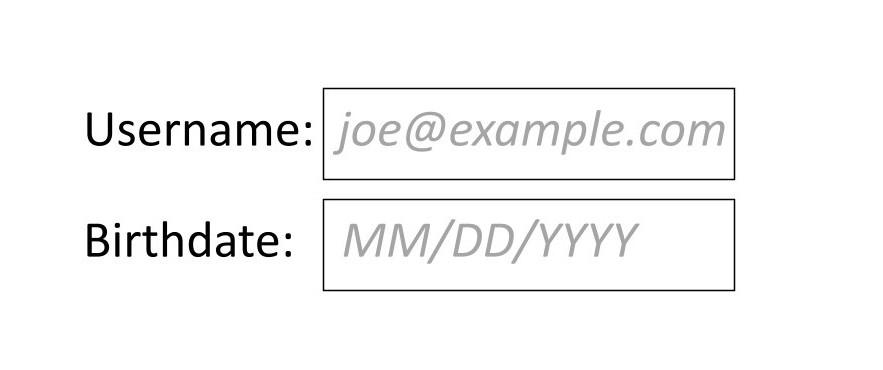
Placeholders are often used when a website asks for things like your username, or your date of birth.
Placeholders are confusing because they force you to remember difficult information. They are especially challenging for users who have trouble remembering things. You should avoid using placeholders when designing webpages. If you do need to use placeholders, make sure that users can use autofill technologies to complete the fields. These tools help people provide information without having to remember it.
Visit Form Fields and Labels to learn more general information on this topic.
Tooltips
Section titled “Tooltips”“Tooltips” are another example of instructions that appear and disappear. Tooltips appear when you hover your mouse over a section of the webpage. They provide a tip or information about the item. This information could be a link, an image, or a form.
Note that some people and organizations do not consider tooltips accessible. Consider providing the information another way. If you do choose to use a tooltip, be sure to test tooltips thoroughly.
If you can activate a tooltip with accessibility tools, it is probably accessible to many users. Example tools include screen readers, screen magnifiers, or navigating with just a keyboard. If accessibility tools cannot read them, provide the information from the tooltip in a different way.
See Screen Reader Resources and Introduction to Keyboard Navigation for more information about these tools.
User Progress / Status
Section titled “User Progress / Status”You should also provide ways for users to see what they have completed on your webpage. The user should always know how many steps they have completed in a process, and how much work is left.
Images, if appropriate, can help explain to users what they need to do. Use images, diagrams, or other visual guides in your webpage to complement instructions when possible. Remember to provide text alternatives; learn more from Images that Convey Content.
Location
Section titled “Location”The placement of information affects instruction accessibility. In order for your instructions to be accessible, you must place them:
- at the beginning of the form or form field, or
- near the activity they are explaining.
Information that is only available after a user submits a form or accesses a form field is not accessible.
The user should know if information in a form is required or not.
One simple solution is to place the word “Required” located next to the input space. In this way, you let the user know that they must enter that information in order to complete the form.
Likewise, if information is optional, the form should let the user know. You can place the word “Optional” next to any form fields that are not required.
You should also let users know what format information should be entered in. For example, if birthdays need to be entered in the order “Month, Date, Year,” your form should say so. This information should be next to the input area.
Forms should tell the user what input is required. If a user needs to enter their birthday, for example, they should know:
- Whether to spell out the month, or write the date with digits
- If zeros need to be placed before single digits
- If the year should be four digits or two.
Sufficient instructions will help the user answer correctly.
If error messages only appear at the end or after the form is complete, then the form is inaccessible. Users may also need to spend more time on the form than needed. You can avoid this problem by marking which information is necessary near the input form.
A webpage is not accessible if a user has to scroll back and forth to the instructions. Avoid unnecessary scrolling by putting instructions near the thing they are explaining.
Content
Section titled “Content”Write your instructions in simple, plain language. Keep your sentences short and at an easy reading level. In the US and Canada, use an 8th grade reading level. Online editing tools can be helpful to make sure your writing is not too complex. You can learn more from Use Plain Language (Ta11y).
Avoid using metaphorical language in your instructions. Metaphors and figures of speech can confuse people with and without disabilities. They can also distract from the literal meaning of your instructions.
You can make your instructions easier to read by breaking them down into distinct steps. For example, steps for making coffee would be:
- Measure water in coffee carafe
- Pour water into coffee maker
- Add coffee grounds to filter basket
- Press “Brew” on coffee maker
Bullet points and lists are easy for the eye to follow. They also allow the user to quickly find the information they need.
If possible, provide a phone number, chat, or email address that users can contact for more help if they need it.
Screen Readers and Sufficient Instructions, Semantic HTML and ARIA
Screen reader users can benefit from additional information on forms and tasks. Some ways you can provide that information are through:
- Semantic HTML
- Non-visual instructions in forms, and
- ARIA.
Semantic markup is a way of writing code to reflect the meaning of the content. It is found in the HTML code for a webpage.
ARIA (Accessible Rich Internet Applications) is a set of roles and attributes used to code websites that make web content more accessible for people using assistive technology.
Semantic HTML and ARIA tell screen reader users what part of the webpage they are in. This makes it easier for screen reader users to understand instructions and forms. Including semantic HTML or ARIA in your instructions can make them more accessible for screen reader users. For more information see Introduction to ARIA (Ta11y) and Semantic Markup.
Some screen reader users prefer non-visual instructions in the form. For example, the phrase “Submit by clicking or selecting the button that says ‘complete,’” if placed next to a form, would let screen reader users know how to complete the form.
How to Test
Section titled “How to Test”You can test the following to make sure that your instructions are accessible:
- Are instructions placed at the beginning of the text?
- Do instructions continue along each step of the process?
- Do radio buttons, checkboxes, or similar elements have labels that let users know what they are selecting?
- Does information about an input form remain visible after you click on it?
- Are instructions written in plain language?
If the answer to any of these questions is “no,” your webpage is likely not accessible. Update the instructions on your webpage to make sure it is accessible for all users.
References
Section titled “References”- WCAG Success Criterion 3.3.2 Labels or Instructions Level A (W3C)
- Providing Text Descriptions to Identify Required Fields That Were Not Completed (W3C)
- Required Fields - Easy Checks (W3C)
- Making Content Usable
- Making Content Usable for People with Cognitive and Learning Disabilities (W3C)
- Placeholders in Form Fields Are Harmful, (NN/g)
- Provide Accessible Labels and Instructions, (Harvard University)
- Tooltip Pattern (W3C)
- The Importance of Tooltips in Web Accessibility: A Rundown (A11y Collective)